
To master the undo in vim editor, developers must move beyond a single-key command and embrace its powerful, non-linear history system. This approach is fundamentally different from nearly every other editor, as it preserves multiple solution paths—a critical advantage over linear undo models that often force developers to discard valuable work.
The Problem: Why Linear Undo Fails in Complex Software Engineering
In any complex engineering environment, from building scalable platforms to iterating on AI models, a simple, linear undo command is a liability. Development is not a straight line; it involves exploring multiple implementation strategies. A traditional undo history, which is a single stack of changes, forces a developer to discard the work from one path just to revert and try another. This isn’t a developer error; it’s a systemic flaw in how most editors handle change history.
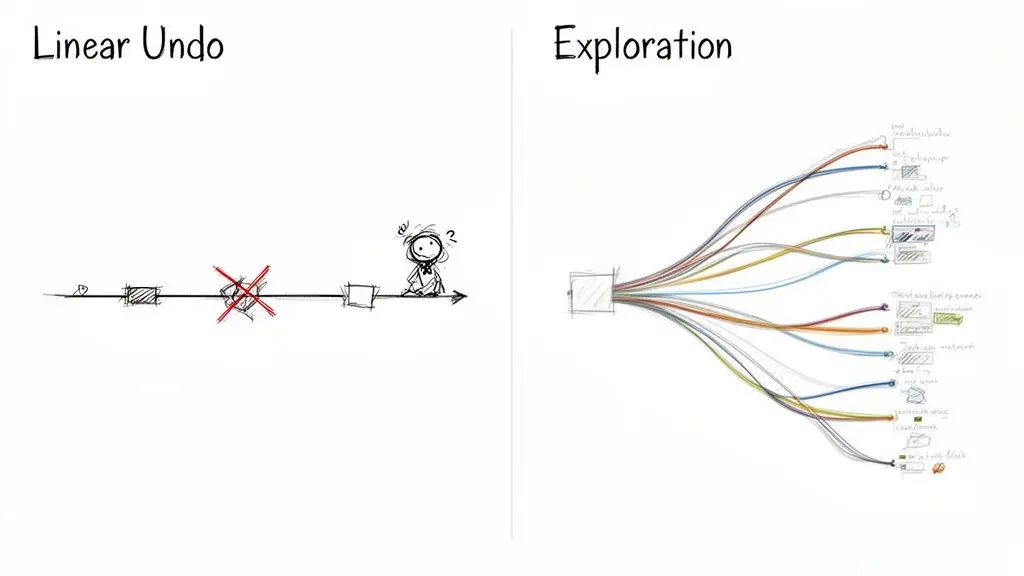
The Risks of a Single Undo Path
Consider a common scenario: a developer needs to optimize a critical database query. They first attempt to refactor the application logic. After writing 50 lines of code, they realize a database-level change with a new index might be a more efficient solution.
In a typical editor with a linear undo system, reverting to the original state to try the second approach permanently erases the first. If the new index also proves suboptimal, the initial refactoring work is lost unless it was manually saved elsewhere.
This limitation introduces significant business and technical risks:
- Lost Intellectual Property: Exploratory coding and experimental refactoring generate valuable insights. Linear undo treats these experiments as disposable, deleting code and logic that could inform future decisions or be repurposed.
- Increased Development Friction: The fear of losing work discourages experimentation. Developers may become overly cautious, sticking to safer but less optimal solutions because exploring an innovative alternative is too risky.
- Inefficient Debugging and Review: When a bug is introduced, tracing its origin becomes much harder if the developer’s entire thought process—including abandoned attempts—is not preserved.
A linear undo history is architecturally misaligned with the non-linear reality of software development. It imposes an artificial constraint on creativity and problem-solving, enforcing a destructive workflow where exploration is penalized.
This is where the philosophy behind undo in vim editor provides a superior architectural model. It treats change history not as a fragile timeline but as a resilient, branching tree of possibilities—a structure that supports the iterative and exploratory nature of modern software engineering.
Solution: Core Commands for Navigating Change History
The foundation of managing Vim’s change history lies in a few core commands that go beyond simple mistake correction. Mastering these enables a developer to navigate their recent work with precision.
The most basic command is u for undoing the last change. In Vim, a “change” is a single, atomic action, such as a block of text insertion, a deletion, or a substitution. To undo multiple steps, you prefix the command with a number; for example, 5u rewinds the last five changes.
Reverting Edits on a Single Line
The uppercase U command is a highly practical tool for line-specific edits. Unlike the standard u, which navigates the entire change history, U focuses only on the current line. It reverts all recent edits made on that specific line, restoring it to the state it was in when the cursor first arrived.
This is invaluable during refactoring. If a developer makes multiple adjustments to a single, complex line of code and decides the entire effort was misguided, a single press of U restores the line’s original state without affecting any other changes in the file.
Redo: The Counterpart to Undo
Undoing too far is a common occurrence. The redo command, Ctrl+R in Normal mode, steps forward through the changes that were just undone, serving as the essential counterpart to u. For product leaders who prioritize long-term system maintainability, this level of granular control is a key advantage over most GUI-based editors. Like u, it can be prefixed with a count: 4<C-r> redoes the last four undone changes.
This dynamic of undoing and redoing is not just for fixing errors but for actively comparing different micro-implementations. You can find more details in this guide on Vim’s undo/redo capabilities from Warp.
Core Undo and Redo Command Reference
This table provides a quick reference for these essential commands.
| Command | Mode | Action | Practical Use Case |
|---|---|---|---|
u | Normal | Undo the last change. | Reverting a recent typo or a small deletion. |
[count]u | Normal | Undo the last [count] changes. | Quickly stepping back five changes with 5u. |
U | Normal | Restore the current line to its original state. | Resetting a line after multiple, unsuccessful edits. |
Ctrl+R | Normal | Redo the last undone change. | Reinstating a change that was undone by mistake. |
[count]<C-r> | Normal | Redo the last [count] undone changes. | Re-applying several changes after undoing too far. |
The effective workflow is not just using
uto fix a mistake. It is usinguandCtrl+Rto shuttle back and forth through recent changes, reviewing the thought process and confidently exploring different solutions.
This fluid navigation is the gateway to unlocking Vim’s unique, non-linear undo features.
Navigating History with Time and Branches
Vim’s true power lies in its undo tree. Instead of a simple, linear stack of changes, Vim organizes history as a tree structure. Every time you undo a change and then make a different one, you are not overwriting the past; you are creating a new branch in the history.
This architecture means you can explore one solution, undo it, try a completely different approach, and then jump back to your original idea without losing any work. It provides a safety net that encourages experimentation.
Time-Based History Navigation
One of the most intuitive ways to traverse this history is by time. Vim allows you to rewind a file’s state to a specific point in the past.
The commands are:
:earlier [time]: Reverts the file to a previous state. You can usesfor seconds,mfor minutes,hfor hours, ordfor days. For example,:earlier 15mrestores the file to its state 15 minutes ago.:later [time]: The inverse of:earlier. If you reverted too far,:later 5mmoves the file’s state forward five minutes in its history.
This is particularly useful for recovering a state when you recall when it was correct but not the number of changes made since.
Branch-Based History Navigation
While time-based navigation is useful, the ability to move between different solution paths—the branches of the undo tree—is where Vim’s non-linear model excels.
The ability to switch between branches of your undo history is like having a lightweight, file-specific version control system for your immediate thoughts. It frees you to explore without the risk of losing good ideas.
Two key commands enable navigation between these forks in history:
g-: Jumps to the chronologically previous state in the undo tree, moving backward along the current branch and across forks.g+: Jumps to the chronologically next state, moving forward through the history.
These commands allow you to traverse every saved state, branch by branch, providing a complete picture of the file’s evolution.
Mastering these foundational concepts is the first step toward leveraging Vim’s powerful branching history as a strategic development tool.
Implementing Persistent Undo for Long-Term Resilience
Vim’s undo tree has a critical limitation by default: it is session-specific. Once the editor is closed, the entire history of changes is lost. For any project spanning more than a single session, this effectively discards a valuable safety net.
Persistent undo solves this problem. This feature instructs Vim to save the complete undo history for a file and automatically reload it upon reopening. This means a developer can undo a change made yesterday, last week, or even last month, providing an incredible layer of resilience for long-term projects.
Configuration and Implementation
Enabling persistent undo requires adding two lines to your vimrc or init.vim configuration file.
set undofile: This command enables the feature, instructing Vim to save undo histories.set undodir=~/.vim/undodir: This specifies the directory where Vim will store the history files. This directory must be created manually.
A common practice is to create a dedicated .vim/undodir directory in your home folder. This keeps all history files organized and separated from project source code. Once configured, Vim manages the history persistence automatically.
Trade-Offs and Implementation Considerations
While highly beneficial, persistent undo introduces trade-offs related to storage and security.
Persistent undo files are a literal log of every change made to a file. If your code contains secrets like API keys or credentials, even temporarily, those secrets will be saved in plain text within the undo file.
These history files can also consume significant disk space over time, especially when editing large files with extensive histories. While the storage cost is typically negligible compared to the safety it provides, it is an important consideration. For critical systems, this reinforces the need for robust disaster recovery plans for your cloud infrastructure.
By default, Vim’s undolevels setting is 1000, but persistent undo effectively makes this history permanent by saving it to disk. This is a key reason why many developers rely on Vim’s advanced capabilities, which you can explore further by learning to display timestamps in Vim’s undo tree.
Visualizing the Undo History with Plugins
Navigating a complex, branching undo tree with abstract commands like g- and :earlier can be challenging. It’s powerful but lacks visual clarity. This is the problem that visualization plugins solve, transforming Vim’s esoteric undo history into a tangible, interactive map.
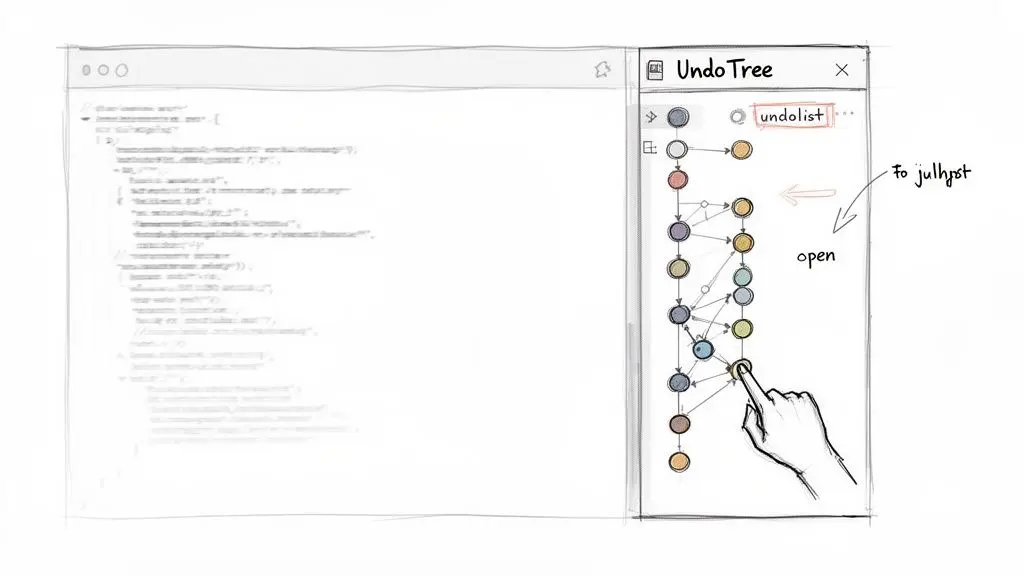
Vim has a built-in :undolist command that prints a list of changes, but it is not interactive and becomes difficult to parse with multiple branches. It provides data without clarity.
Introducing Interactive Undo Trees
Plugins tap into Vim’s undo data and render it as an interactive graph, similar to a git log --graph view. This visualization allows developers to see exactly where history forked and compare different development paths side-by-side.
Popular plugins that provide this functionality include:
undotree: A well-regarded plugin that displays a clean, vertical tree of all changes, including timestamps and highlighting the current file state.Gundo.vim: An alternative that presents the undo tree in a separate window, allowing users to browse states and view a live diff of changes before committing to a revert.
Installation is straightforward with modern Vim package managers like vim-plug or packer.nvim, typically requiring only a single line in your configuration.
The real value of a visual undo tree is not just seeing the past—it’s making that history actionable. It turns a theoretical safety net into a practical tool for debugging, code review, and confident experimentation.
A Practical Workflow with Visualization
Imagine hunting for a regression introduced within the last hour. Instead of blindly using :earlier 1h and stepping through changes, a developer can open the undo tree.
With a plugin like undotree, every save point and branch is immediately visible. The developer can navigate the tree, select any point in the past, and instantly revert the buffer to that state. The integrated diff view shows exactly what changed, making it easy to pinpoint the introduction of the bug.
This workflow is highly effective in several scenarios:
- Recovering Lost Ideas: Code deleted to try a different approach is not gone; it exists on a separate branch in the undo tree. A visualizer makes it easy to find and restore that code.
- Understanding Code Evolution: When returning to a file after a break, the undo tree provides a high-resolution log of its construction, complementing the broader Git history with fine-grained detail.
- Comparing Implementation Strategies: If a developer tried three different ways to implement a feature, the undo tree preserves all three attempts. They can be switched between effortlessly to compare performance or complexity.
By adding a visual layer to the undo in vim editor, you transform a complex feature into an intuitive, strategic asset for daily development.
Adopting a Resilient Workflow for Your Team
Knowing Vim’s undo commands is one thing. Building a resilient team workflow around them is something else entirely. For engineering leaders and CTOs, the real value isn’t in memorising shortcuts, but in embedding resilience directly into your development cycle.
Vim’s non-linear undo tree isn’t just a feature—it’s an architectural asset. It reduces friction during exploratory coding and, more importantly, preserves the intellectual property generated during that creative process.
By treating a file’s change history as a valuable project resource, teams can build more robust and maintainable software. This requires a small but powerful mindset shift: moving from a disposable history to a persistent one.
The core principle is simple: your team’s change history is a high-resolution log of problem-solving. Preserving it is a strategic choice that de-risks innovation and improves long-term code quality.
This is why engineering leaders should standardise two key practices for any critical software project:
- Implement Persistent Undo: Make this a default configuration for all developers. It provides a crucial safety net that protects work not just for a single session, but across days or even weeks.
- Encourage Visualisation Tools: Promote plugins like
undotree. A visual map makes the undo history accessible, turning an abstract concept into a practical tool for debugging and even for code review.
This approach fits perfectly alongside modern development practices, complementing formal version control systems. For a deeper look into versioning, our guide on how to revert to a specific commit in Git covers related strategies.
Common Questions Answered
When you start digging into Vim’s more advanced features, a few questions always come up. Let’s tackle the most common ones I hear from developers.
How Is the Undo Tree Different from Git Branches?
It’s all about scale and purpose. Think of Vim’s undo tree as your personal, high-resolution scratchpad for a single file. It’s perfect for exploring small coding ideas and backing out of tiny mistakes without the overhead of a full commit. It tracks every single micro-change you make.
Git branches, on the other hand, are built for the big picture. They manage repository-wide changes, coordinate major feature work, and make team collaboration possible.
Use the undo tree for your minute-to-minute safety net and local experiments. Use Git for formal, team-wide version control. They’re complementary tools, not competitors.
Will Enabling Persistent Undo Slow Down My Machine?
For almost any modern computer, the performance hit is so small you’ll never notice it. Vim is incredibly optimised, and it writes the undo file to disk efficiently in the background. You won’t see any I/O lag during your normal editing sessions.
The real consideration isn’t performance, but disk space over very long periods. This can become a factor on projects with massive files or an extremely long history. However, the productivity and safety you gain from a persistent undo history almost always outweighs the tiny resource cost.
It’s a powerful safeguard, much like having a solid versioning strategy. For more on that, our article on how to revert a GitHub commit offers some related insights.
Can I Share My Undo History with Colleagues?
Technically, you could send someone the .undo file, but it’s not a good idea and is definitely not a practical way to collaborate. An undo history is deeply tied to the specific state of a file on your machine. It’s meant for your individual workflow, not for teamwork.
When it comes to sharing changes, reviewing code, or working with your team, you should always rely on a proper version control system like Git. It provides the structure, context, and tools you need to work together effectively.
At Devisia, we believe that building resilient software starts with choosing the right tools and establishing pragmatic workflows. Our approach prioritises long-term maintainability, whether we’re developing custom SaaS platforms or integrating AI systems. Discover how we turn business vision into reliable digital products at https://www.devisia.pro.