
When you need to undo changes from a specific commit in a shared repository, your safest and most professional command is git revert <commit-hash>. This action creates an entirely new commit that reverses the original changes, keeping the project’s history clean, intact, and stable for the whole team.
The Problem: Unintended Consequences in Shared Repositories
In any software project, from a SaaS platform to a complex AI system, the introduction of bugs is an operational certainty. A developer might push a commit that degrades API performance, breaks a critical feature, or introduces a security vulnerability. The business impact can be immediate and severe.
The challenge is not preventing all mistakes, but having a robust, predictable process for correcting them without disrupting the development team or corrupting the codebase. A naive approach—like forcibly rewriting history—can turn a single bad commit into a team-wide synchronization failure. This is where mastering git revert to a specific commit becomes a non-negotiable skill for engineering leadership.
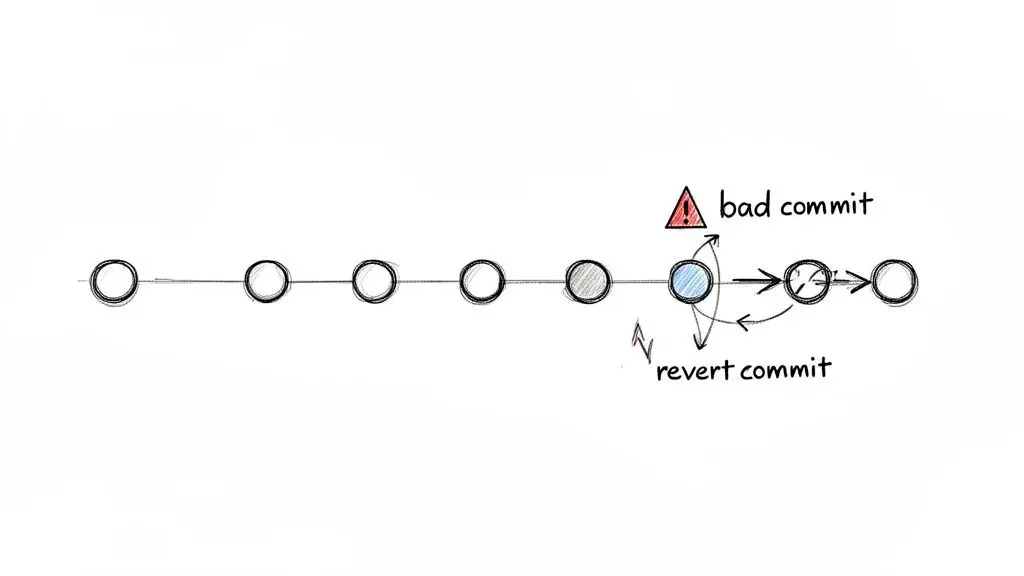
Solution Architecture: Revert vs. Reset
Before implementing the solution, it’s crucial to understand the fundamental architectural difference between git revert and its destructive counterpart, git reset. While both commands undo changes, their impact on a collaborative project’s history is profoundly different.
Git Revert vs Git Reset Key Operational Differences
| Aspect | git revert | git reset —hard |
|---|---|---|
| History | Creates a new commit to undo changes. Non-destructive. | Deletes commits from the branch history. Destructive. |
| Safety | Safe for shared branches (main, develop). | Extremely risky on shared branches; safe for local-only work. |
| Collaboration | Keeps history consistent for all team members. | Forces all team members to manually fix their local repositories. |
| Audit Trail | Maintains a complete and transparent log of all actions. | Erases the record of the original mistake and its removal. |
In short, revert provides a transparent record of what happened and why it was corrected. In contrast, reset attempts to erase the mistake from the record, a practice that is incompatible with professional, collaborative software development.
The Trade-off: Preserving History for Collaboration and Audits
Unlike destructive commands, git revert doesn’t rewrite history; it appends to it. This non-destructive approach is the professional standard for rolling back changes on shared branches like main or develop for critical reasons:
- It creates an auditable trail. Every action, including the rollback, is recorded. This transparent history is essential for code reviews, debugging, and team collaboration. It answers not just what changed, but why it was undone.
- It prevents repository divergence. Rewriting the history of a shared branch with
git resetis chaotic. It forces every other developer to perform complex, error-prone commands to re-align their local work. Reverting avoids this entirely. - It supports governance and compliance. For organizations operating under regulations like GDPR or standards like DORA, an immutable log of code changes is not a technical preference but a business requirement. A clean, revert-based history provides that clear audit trail.
This disciplined approach reflects a mature engineering culture. A 2023 analysis found that 92% of developers have had to roll back code. For teams focused on maintainability, git revert is the standard method because it preserves the linear history needed for audits and security reviews.
Choosing
git revertovergit reseton a shared branch is an architectural decision. It prioritizes project safety and team synchronization over the short-term convenience of a rewritten history.
Ultimately, mastering git revert is about managing risk. It offers a safe, documented, and collaborative way to fix mistakes, ensuring one error doesn’t spiral into a team-wide problem. This aligns with the principles of a robust and transparent development environment, which is a core part of a strong engineering culture. You can reinforce these practices by exploring our guide on creating a code of conduct for engineering and AI teams.
Executing a Standard Revert for a Single Commit
Imagine production alerts are firing. A recent push introduced a severe performance regression on a critical API endpoint. The professional response is a precise, controlled action: reverting the one commit causing the problem. This cleanly undoes the damaging change without disrupting the project’s history or creating chaos for the rest of the team.
Step 1: Pinpoint the Target Commit
First, you must identify the exact commit to undo. The most effective tool for this is git log. The --oneline flag provides a scannable, single-line view of each commit, showing its hash and message.
git log --onelineThe output provides a clear timeline of recent changes.
c8d32a9 (HEAD -> main) Fix: Update user authentication flow
a5b2e1f Feat: Add caching layer for product endpoints
e4d8c7b Perf: Refactor query logic for user profiles  <- The problematic commit
f9a1b3d Docs: Update API documentation for v2.1
...
A quick review of the commit messages usually points directly to the source of the issue. In this scenario, e4d8c7b is the commit that degraded user profile lookups. This seven-character hash is all you need for the next step.
Step 2: Perform the Revert
With the commit hash identified, the revert itself is a single command. You are instructing Git to create a new commit that is the exact inverse of the problematic one.
git revert e4d8c7bWhen you execute this, Git calculates the inverse changes and opens your default text editor with a pre-filled commit message. The default message is functional but lacks critical context:
Revert "Perf: Refactor query logic for user profiles"

This reverts commit e4d8c7b2a9d1c0f8e3b4f5a6d7c8e9f0a1b2c3d4.
This is a crucial moment for project documentation. A proficient engineer will augment the default message to explain why the revert was necessary.
A well-written revert message is a critical piece of project documentation. It explains the business or technical reason for the rollback to future developers, auditors, and your future self.
A much better message provides essential context:
Revert "Perf: Refactor query logic for user profiles"

This reverts commit e4d8c7b. The refactor introduced a severe N+1 query in the user profile API endpoint, increasing p99 latency by over 500ms under load and triggering production alerts.

Reverting to restore service stability. A new fix is being tracked in ticket [PROJ-123].
This level of detail is invaluable. It communicates the impact, justifies the action, and points the team to where the corrective work is being tracked. Once you save and close the editor, Git finalizes the new revert commit.
Step 3: Verify the Additive History
The primary benefit of git revert is its safety. The original “bad” commit, e4d8c7b, is not deleted. It remains a permanent part of the project’s history. Running git log --oneline again confirms this additive process:
3f9e6a2 (HEAD -> main) Revert "Perf: Refactor query logic for user profiles"
c8d32a9 Fix: Update user authentication flow
a5b2e1f Feat: Add caching layer for product endpoints
e4d8c7b Perf: Refactor query logic for user profiles
f9a1b3d Docs: Update API documentation for v2.1
...
This approach creates a transparent, auditable trail. Anyone can see the original change, the revert, and the reason for it. This is essential for:
- Team Collaboration: Everyone pulls a consistent history, avoiding the synchronization issues caused by rewriting history on shared branches with commands like
git reset. - Audits and Compliance: In many industries, an immutable and complete history of all code changes is a regulatory requirement.
- Debugging: Understanding why a change was made and later undone provides powerful context for future attempts to solve the same problem.
Finally, since you’ve just created a new commit on your local machine, you must share it with your team and trigger the deployment pipeline.
git pushYou have now used git revert to safely resolve a production issue while maintaining a clean, stable, and auditable codebase history.
Reverting Pushed Commits and Complex Merges
When a faulty commit is pushed to a shared branch like main or develop, the pressure to fix it is immediate. At this point, your options for remediation narrow significantly. Attempting to rewrite public history is a recipe for chaos, making git revert the only architecturally sound choice. The situation becomes more complex when dealing with merge commits, which require a more nuanced approach.
The Risk of Rewriting Public History
Once code is on a shared branch, rewriting its history is no longer a viable option. Running git reset --hard on a branch your team depends on is one of the fastest ways to corrupt your colleagues’ local repositories. It erases commits from the public record, causing your local branch history to diverge from the remote’s.
Any developer who pulls after you’ve force-pushed a reset will encounter a cascade of confusing errors. Worse, they risk unintentionally re-introducing the very commits you were trying to eliminate. This forces a painful, manual sync-up across the entire team, wasting valuable engineering time and introducing unnecessary risk.
Using
git reverton a pushed commit is a non-negotiable best practice. It creates a new commit that safely undoes the bad changes, preserving a clean, consistent, and forward-moving history that everyone can reliably pull.
This approach also keeps the project’s audit trail intact, which is often crucial for compliance and security reviews. It’s a pragmatic decision that prioritizes team stability and project integrity over individual convenience.
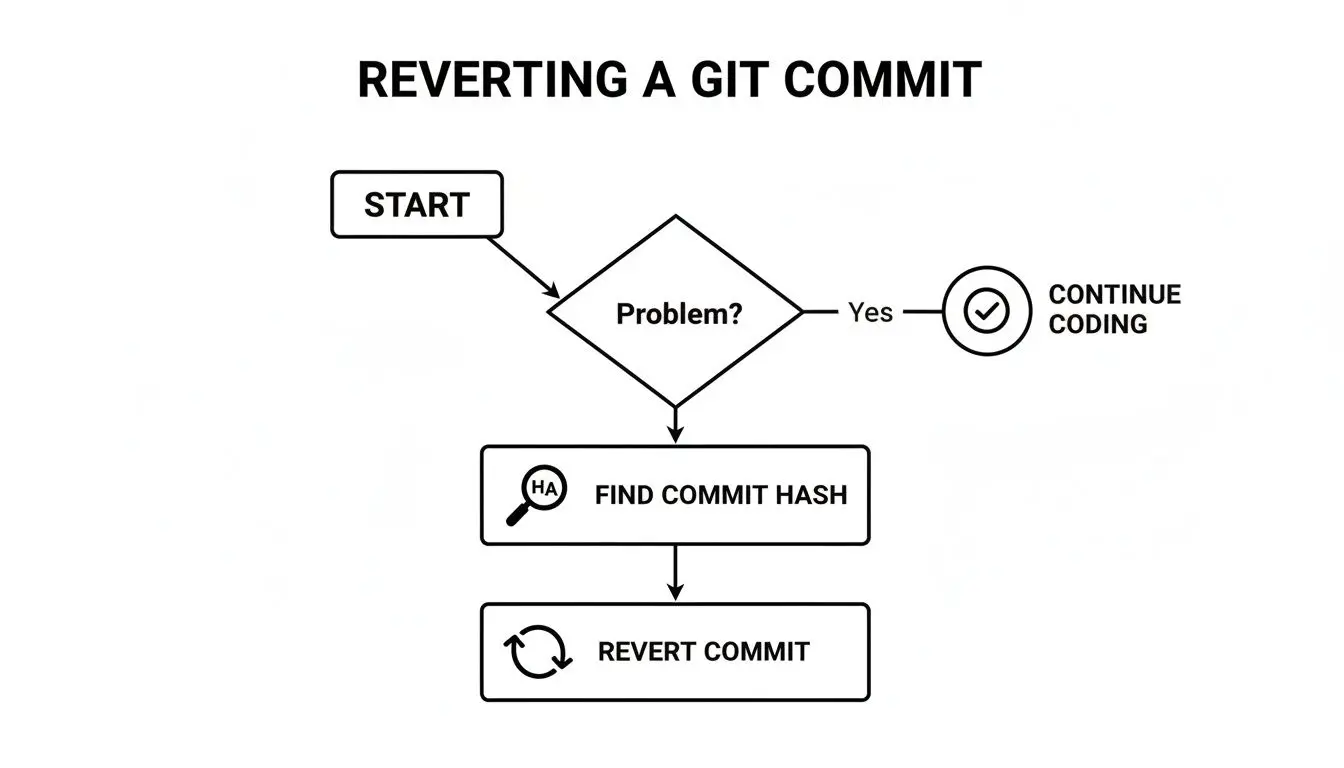
The key takeaway is clear: once a problem is identified in a shared branch, the standard procedure is to locate the offending commit and apply a non-destructive revert.
The Nuance of Reverting a Merge Commit
Reverting a single, standard commit is straightforward. But what happens when the commit you need to undo is a merge commit? This is a common scenario—a feature branch is merged into main and is later found to contain a critical bug.
If you attempt a standard git revert <merge-commit-hash>, Git will return an error:
error: commit <merge-commit-hash> is a merge but no mainline was specified.
fatal: revert failed
This error occurs because a merge commit has at least two parents: the branch it was merged into (e.g., main) and the branch that was merged from (e.g., feature/new-auth). Git requires you to specify which parent’s history to preserve—which side of the merge represents the “mainline” you want to keep. You provide this instruction with the --mainline (or -m) flag, followed by a number indicating the parent.
git revert <merge-commit-hash> -m 1: This tells Git to keep the history of the first parent (the target branch, e.g.,main) and undo the changes introduced from the second parent (the feature branch).git revert <merge-commit-hash> -m 2: This would do the opposite, which is almost never the intended action when fixing a bug on the main branch.
In virtually all bug-fixing scenarios, you will use -m 1.
A Practical Scenario: Reverting a Buggy Feature Merge
Let’s say a feature/new-reporting-api branch was just merged into main. The merge commit is b3d8f1a. A few minutes later, production alerts start firing—the new API is causing database deadlocks.
1. Identify the merge commit and its parentage. You must be certain which parent is the mainline. Inspect the commit:
git log -1 --pretty=medium b3d8f1aThe output will show the parent commits. The first one listed is parent #1 (main), and the second is parent #2 (feature/new-reporting-api).
2. Execute the revert. With the parentage confirmed, you can now revert the merge, instructing Git to keep parent #1 as the mainline.
git revert b3d8f1a -m 13. Document and push. Git will open your editor to create the revert commit message. As always, be descriptive about why the merge was rolled back. After you save the message, push the revert commit to share the fix with your team.
git pushThis action creates a new commit that effectively removes the buggy feature’s code from main without destroying any history. You can find a more detailed walkthrough of this process in our guide to reverting commits on GitHub.
Mastering this technique is a hallmark of high-performing teams. While the average main-branch success rate is around 82.15%, top-tier teams push that number above 90% by using tools like git revert for precise, safe rollbacks. With 72% of Fortune 50 companies relying on GitHub Enterprise, the ability to safely manage collaborative history isn’t just a best practice; it’s fundamental to modern software delivery.
How to Navigate and Resolve Revert Conflicts
Even a “safe” command like git revert can result in a merge conflict. This is not a crisis, but an indication that Git requires human intervention to resolve an ambiguity.
A revert conflict occurs when a more recent commit has already modified the same lines of code you are trying to undo. Git is now faced with a dilemma: should it keep the newer changes, or should it restore the code to its state before the commit you’re reverting? Instead of making a potentially incorrect assumption, Git pauses the process and delegates the decision to you, flagging the conflicted areas in your files with its standard markers (<<<<<<<, =======, >>>>>>>).
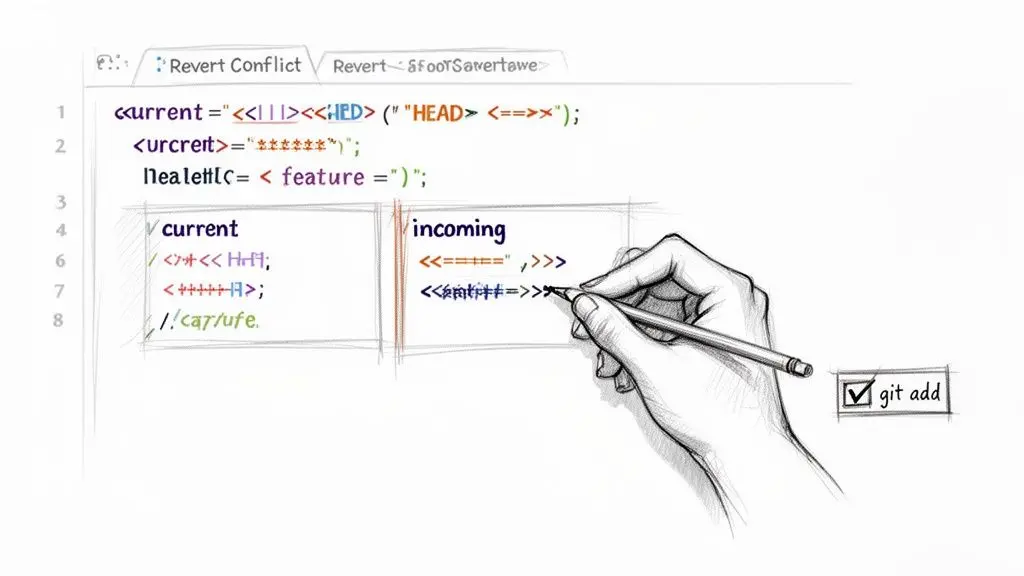
Understanding the Conflict Markers
When a conflict occurs, open the affected file to analyze the situation. The markers delineate the competing code versions:
<<<<<<< HEAD: The code between this marker and the=======divider represents the current state of your branch (HEAD). It includes changes made after the commit you are reverting.=======: This line separates the two conflicting versions.>>>>>>> parent of <commit-hash>...: The code between the divider and this marker is what therevertcommand is attempting to reintroduce. This reflects the state of the file before the commit you are trying to undo.
Your task is to act as the final arbiter. You must manually edit the file to produce the correct final version, then remove the conflict markers. This may involve keeping one version, the other, or manually crafting a new solution that integrates elements of both.
A Real-World Conflict Resolution Scenario
Consider a common situation. An engineer adds a new feature flag in an early commit. A later commit refactors the same configuration file and renames that flag.
-
Original Commit (
a1b2c3d): A new setting is added."enable_beta_feature": true -
Later Commit (
x4y5z6a): The setting is renamed for clarity during a refactor."feature_beta_enabled": true
You later discover a bug in the original feature and need to run git revert a1b2c3d. This triggers a conflict. Opening the file reveals:
<<<<<<< HEAD
    "feature_beta_enabled": true,
=======
>>>>>>> parent of a1b2c3d...
Git is confused. The HEAD version contains "feature_beta_enabled": true, but reverting commit a1b2c3d is trying to remove "enable_beta_feature": true, a line that no longer exists in its original form. The correct resolution is to manually delete the entire block, including the refactored line "feature_beta_enabled": true,, as this achieves the revert’s original intent: disabling the feature.
Completing the Revert Process
Once you have edited the file to resolve the conflict, you must signal to Git that the resolution is complete.
- Mark as Resolved: Use
git add <conflicted-file-name>to stage the corrected file. This informs Git that you have resolved this specific conflict. - Continue the Revert: Finalize the process by running
git revert --continue. Git will now create the revert commit using your manually resolved changes.
If at any point you become unsure of your edits, you can safely abort the entire process by running git revert --abort. This command will halt the revert and return your repository to its state before you began.
Having a clear process for conflicts is key. Studies show developers can spend about 10% of their time just resolving merge conflicts. For teams that master their version control workflow, however, productivity can jump by 20%. A structured approach to handling
git revertconflicts is a big part of minimising that friction. You can see more data in this full research on Git-based development statistics.
Building a Revert-Friendly Engineering Workflow
The git revert command is a powerful tool, but its effectiveness depends on an engineering workflow designed for resilience. For CTOs and engineering leads, this means fostering a disciplined culture where undoing a mistake is a low-drama, routine operation. An effective rollback strategy is a sign of a mature development process, built on clarity and a commitment to long-term system health.
Foundational Practice: Small Commits and Clear Messages
The cornerstone of a revert-friendly workflow is the small, atomic commit. A single, massive commit with the message “WIP updates” that bundles three features, a bug fix, and a refactor is nearly impossible to revert cleanly.
Enforcing small commits, each focused on a single logical change, transforms Git history from a messy diary into a precise, searchable ledger. Each commit becomes an independent, reversible unit of work. This discipline must be paired with clear, descriptive commit messages that explain:
- What the change does.
- Why it was necessary (e.g., bug fix, new feature).
- Context, such as a link to a project management ticket (e.g.,
[PROJ-451]).
This turns a stressful incident investigation into a quick git log search to find the exact change to revert.
Architectural Guardrails for Stability
While good habits are important, a solid process architecture is what makes reverts predictable. The goal is to catch issues before they require a revert and to make the revert itself foolproof when they inevitably slip through.
An effective rollback strategy is proactive, not reactive. It is an intentional design choice reflecting a company’s commitment to building maintainable and reliable software.
Implementing key guardrails is non-negotiable. Branch protection rules on platforms like GitHub or GitLab are essential. They prevent direct pushes to critical branches like main or develop, forcing every change through a controlled and auditable process.
The Role of CI/CD and Pull Requests
The next layer of defense is the mandatory pull request (PR) review. This simple requirement ensures at least one other engineer reviews the code before it is merged, serving as a critical checkpoint for quality, knowledge sharing, and upholding standards.
This process is supercharged by a robust Continuous Integration/Continuous Deployment (CI/CD) pipeline. Every PR should automatically trigger a comprehensive suite of automated tests—unit, integration, and end-to-end—to validate the changes. You can discover more about building a resilient delivery system in our comprehensive guide to CI/CD pipelines.
This automated validation acts as a critical safety net. If tests fail, the merge is blocked. If a bug still gets through, the combination of atomic commits and a clear PR history makes the git revert operation fast and precise. According to insights into high-performing engineering teams, elite teams keep rework under 3% and maintain a New Work Rate over 86%, partly because they use tools like git revert to fix defects without creating new technical debt. With 74% of organizations practicing continuous deployment relying on version control, a revert-friendly workflow is clearly linked to higher quality and faster recovery.
Ultimately, building this workflow means treating your development process as a component of your product’s architecture—a system designed for resilience, where git revert to specific commit is just one well-oiled part of a machine built for long-term success.
Frequently Asked Questions About Git Revert
Once the theory of git revert is understood, practical questions arise during its application in a team environment. Using the command confidently requires understanding its behavior in real-world scenarios. Here are common questions from engineering teams, with pragmatic answers.
Can I Revert a Revert Commit?
Yes. A revert commit is just another commit in your history; it simply contains changes that are the inverse of a previous commit.
If you realize a revert was a mistake, you can run git revert again, targeting the hash of the revert commit itself. This will create a new commit that re-applies the original changes, effectively undoing your undo. This is a clean, safe, and fully documented method for correcting the course.
What Is the Difference Between Reverting a Single Commit and a Range?
Reverting a single commit with git revert <commit-hash> is a surgical operation. It targets one specific change set and creates a single new commit to undo it. This is the standard approach for isolated mistakes.
Reverting a range is used to roll back an entire sequence of work, such as a feature that spanned several commits. The command git revert <oldest-hash>^..<newest-hash> accomplishes this by walking backward from the newest commit to the oldest, creating a separate revert commit for each one in the range. This preserves a granular history of the rollback, rather than creating one monolithic revert.
Does Git Revert Delete the Original Commit?
No. This is the most critical concept to grasp about git revert and the source of its safety in collaborative environments. It never alters or deletes existing project history.
Instead of erasing the past, git revert creates a new commit that applies the inverse of the specified changes. The original “bad” commit remains untouched in your log, available for audit and analysis.
This additive approach ensures the project’s history remains complete and immutable. For any team concerned with collaboration, compliance, or simply understanding what happened, this non-destructive behavior is non-negotiable.
When Should I Use Revert Instead of Reset?
This distinction is central to maintaining a clean, collaborative workflow. The rule is simple and pragmatic:
- Use
git revertfor any changes that have been pushed to a shared, public branch (likemainordevelop). Reverting is safe for public history because it adds to it without rewriting it. - Use
git resetonly for local changes on your private branches that you have not yet shared. Usingreseton a shared branch forces a history rewrite, which can create significant synchronization problems for the entire team.
With Git holding a 76% market share and powering 99% of open-source projects, mastering these core safety principles is essential. Professionals use commands like git revert to specific commit to maintain a clean, auditable history, a practice that contributes to a 20% increase in productivity for teams that use version control well, according to findings on Git-based development statistics. This discipline keeps the entire team moving forward on a stable foundation.
At Devisia, we believe that robust development practices are the foundation of reliable software. We partner with companies to build maintainable digital products and AI systems, turning vision into reality with an architecture-first mindset.
Discover how our pragmatic approach can help you build your next product