
To roll back a problematic commit on a shared repository, the standard, safest method is using git revert followed by the target commit’s hash. This command does not delete or alter existing history. Instead, it creates a new commit that precisely reverses the changes of the specified commit, ensuring a transparent and auditable project history.
The Problem: Unmanaged Code Reversions in Collaborative Projects
In any software development lifecycle, mistakes are an operational reality. A new feature might introduce a subtle bug, a configuration change could destabilize a staging environment, or a commit could inadvertently expose sensitive information. The primary challenge is not preventing errors entirely, but establishing a robust process for correcting them without introducing further risk or chaos.
This is where the choice of Git command has significant architectural implications. For B2B systems, where stability, compliance, and a clear audit trail are non-negotiable, how changes are undone is as critical as how they are made. Using history-rewriting commands like git reset on shared branches is a well-known anti-pattern. It obfuscates the project’s evolution, creates divergent histories for team members, and can lead to irreversible code loss if other developers have already pulled the “rewritten” branch. This approach creates technical debt and operational risk. For a broader perspective on infrastructure resilience, our analysis of disaster recovery strategies for cloud computing covers related principles.
The Solution: Maintaining an Auditable, Immutable-Like History
The professional, low-risk solution for correcting errors on shared branches is git revert.
Unlike commands that erase the past, git revert preserves the integrity of the commit log. It operates by creating a new commit that programmatically reverses the changes from a previous one. This methodology provides a transparent, auditable history of every action, including corrective measures. This is not just a good practice; for regulated industries, it’s a necessity.
This capability is particularly vital in high-velocity engineering environments. At Devisia, where our teams build scalable SaaS platforms and AI systems, mastering safe reversion techniques is fundamental. According to GitClear’s 2024 analysis of nearly 900,000 developer-years, the median developer makes just 1,200 commits annually, but the most active (90th percentile) reach 4,500. At this volume, a single faulty commit can quickly propagate to production, making efficient and safe rollbacks a critical operational capability. git revert is designed for this, creating a safe “inverse” commit while leaving the original history intact. You can read more on developer productivity and commit patterns on GitKraken.
By treating a revert as a standard, tracked change, you maintain a clean, linear history that chronicles the project’s complete evolution—including errors and corrections. This transparency is a cornerstone of responsible software engineering and governance.
Comparing Git’s “Undo” Operations: Revert vs. Reset
In Git, there is no universal “undo” command. The appropriate tool depends entirely on the context, specifically whether the commits in question have been shared with other developers. The primary commands for rolling back changes are git revert and git reset, each designed for a distinct use case with different trade-offs.
The critical decision factor is the commit’s scope: is it local or has it been pushed to a shared remote? git revert is the standard for any change present on a shared branch because it is non-destructive to the existing history. git reset is a powerful tool for cleaning up your local commit history before sharing it.
The following decision tree illustrates this core principle. If a commit exists on a shared branch, the only safe option is to revert. If it is confined to your local repository, you have more flexibility.
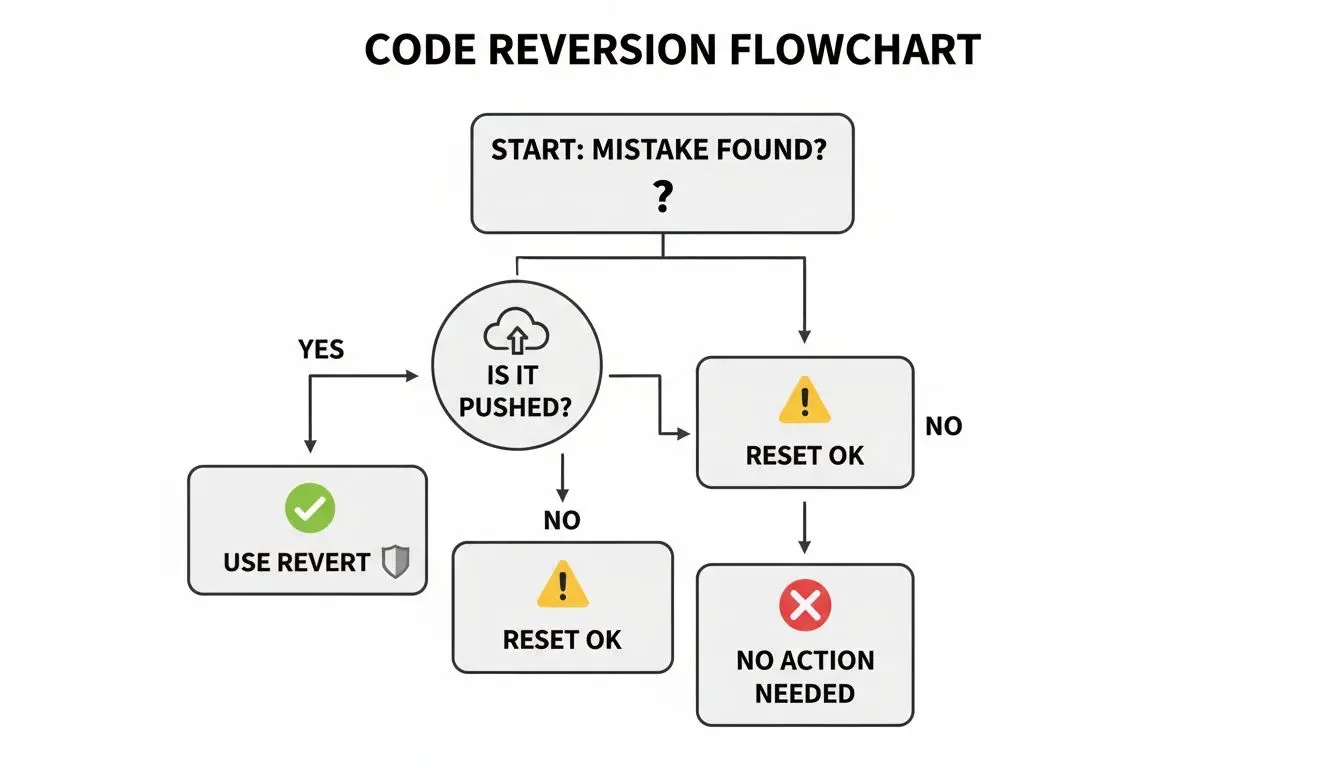
This flowchart reinforces the golden rule of collaborative Git workflows: do not rewrite shared history. git revert upholds this rule by appending to the history, not altering it.
Git Revert vs. Reset: A Technical Comparison
| Command | Effect on History | Primary Use Case | Risk on Shared Branches |
|---|---|---|---|
git revert | Non-destructive. Creates a new commit that inverts a previous one. | Safely undoing changes on a public or shared branch. | Low. Preserves history and integrates cleanly into team workflows. |
git reset | Destructive. Moves the branch pointer, effectively erasing commits and rewriting history. | Cleaning up local commits before pushing to a shared branch. | High. Rewrites public history, forcing collaborators into complex and error-prone recovery procedures. |
This table clarifies the fundamental trade-off: git revert is for public, shared history, while git reset is for private, local history.
Git Revert: The Safe, Auditable Solution
Consider git revert the standard operational procedure for undoing changes in a collaborative environment. It does not delete or hide previous commits. Instead, it inspects the target commit and generates a new commit that applies the inverse set of changes.
For example, if commit abc1234 added a function, git revert abc1234 will create a new commit that removes that same function. The history moves forward, but the codebase state moves backward.
Key architectural advantages of this approach include:
- Preservation of History: The original “mistaken” commit remains in the log, alongside the subsequent revert commit. This creates a complete, auditable trail of what happened and why it was undone—invaluable for debugging, security audits, and code reviews.
- Safety for Shared Branches: Because
git revertsimply adds a new commit, the resulting change can be pushed to a remote branch without disrupting team members’ work. For them, it is just another commit to pull. - Clear Communication: The default commit message generated by
revertexplicitly states which commit it is reversing, making your intent transparent to the entire team.
Git Reset: The Local History Rewriter
git reset is a fundamentally different tool. It is a destructive command that modifies a branch’s history by repositioning the HEAD pointer to an earlier commit. Depending on the mode used (--soft, --mixed, --hard), it can discard commits from the history, unstage changes, or delete work from the working directory.
--soft: Moves the branch pointer but keeps all changes from discarded commits staged for a new commit. Useful for squashing multiple local commits.--mixed(default): Moves the pointer and unstages the changes, leaving them as modifications in your working directory.--hard: Moves the pointer and permanently deletes all changes from the discarded commits from both the history and the working directory. This should be used with extreme caution.
Warning: Never use
git reseton a branch that has been pushed and pulled by others. A subsequent force-push (git push --force) rewrites the public history, creating a divergent state that will break your collaborators’ local repositories and require a manual, error-prone recovery process.
The appropriate use case for git reset is tidying up your local feature branch before you create a pull request. Once commits are shared, git revert is the correct tool.
How to Revert a Single Commit: Practical Scenarios
A common scenario is a single, isolated commit that introduces a defect. The objective is to perform a surgical rollback of that specific change without impacting subsequent commits in the project’s history.
This is the exact problem git revert is designed to solve. It provides a safe, non-destructive way to undo a change that has already been shared. Unlike git reset, it appends to history rather than rewriting it, creating a new commit that is the precise inverse of the problematic one.
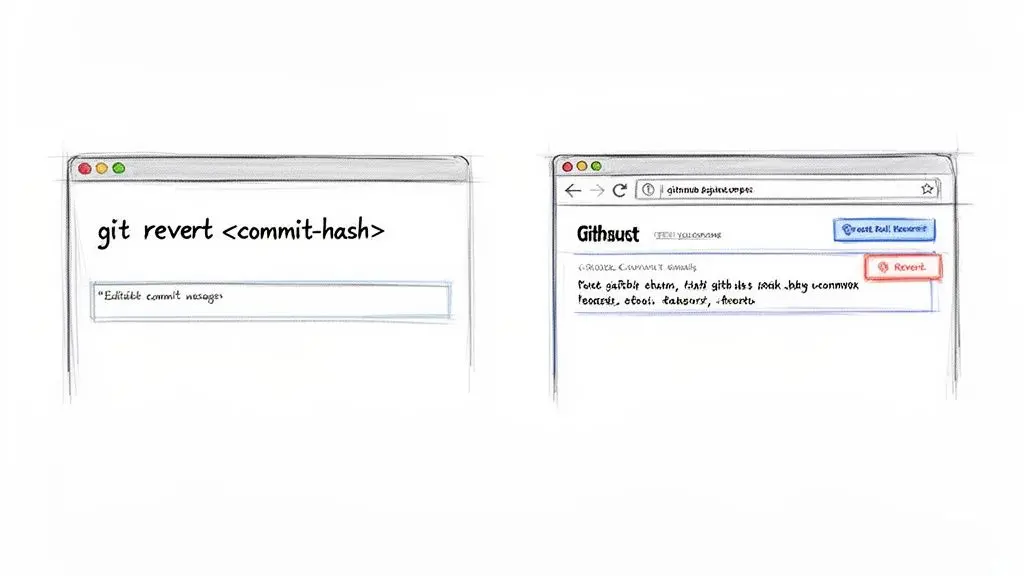
The following scenarios demonstrate its use via the command line and the GitHub web interface.
Scenario A: Reverting via the Command Line
Problem: A developer pushes a commit that accidentally exposes an internal API endpoint in a public-facing service. The change must be reversed immediately to mitigate the security risk before it propagates through the CI/CD pipeline.
Solution:
-
Identify the Commit Hash: Use
git logto find the unique hash of the faulty commit. The--onelineflag provides a concise view.git log --onelineFrom the output, copy the hash of the target commit (e.g.,
8a2b4e7). -
Execute the Revert: Run the
git revertcommand with the commit hash.git revert 8a2b4e7Git creates a new commit that reverses the changes from
8a2b4e7and opens your default text editor to confirm the commit message. -
Add Context to the Commit Message: The default message is typically “Revert ‘[Original commit message]’”. This is insufficient. Best practice is to add a clear explanation of why the revert was necessary. For example: “Reverting to remove public exposure of an internal API endpoint. This addresses security vulnerability [Ticket-ID].” This context is crucial for future audits and team understanding.
-
Push the Revert Commit: Push the newly created revert commit to the remote repository to share the correction.
git push origin main
The hazardous code is now removed from the branch HEAD, and the history provides a transparent record of the incident and its resolution.
Scenario B: Reverting via the GitHub Web Interface
Problem: A pull request is merged, but it introduces a non-critical UI bug—a button is misaligned on mobile viewports. The issue needs to be fixed, but the change can go through the standard review process.
Solution: For straightforward reverts, the GitHub UI offers an efficient and controlled workflow.
- Locate the Commit: In the repository on GitHub, navigate to the “Commits” tab to view the project history.
- Initiate the Revert: Find the commit that introduced the bug. On the far right of the commit details, GitHub provides a “Revert” button.
- Open a Pull Request: Clicking “Revert” does not commit directly to the target branch. Instead, GitHub creates a new branch containing the revert commit and automatically opens a pull request.
This is a key safety feature. It enforces that even a revert must pass through the team’s standard review process, including automated CI checks, static analysis, and peer approval. The team can then review, approve, and merge the revert PR, ensuring quality control is maintained even during a rollback. This process aligns the github revert to previous commit action with established engineering governance.
Reverting Complex Changes: Merge Commits and Pushed Code
Reverting a single commit is relatively simple. However, real-world scenarios often involve more complex histories, such as reverting an entire pull request (a merge commit) or correcting a mistake that has already been pushed and deployed. These situations require a more nuanced approach to avoid introducing further complications.
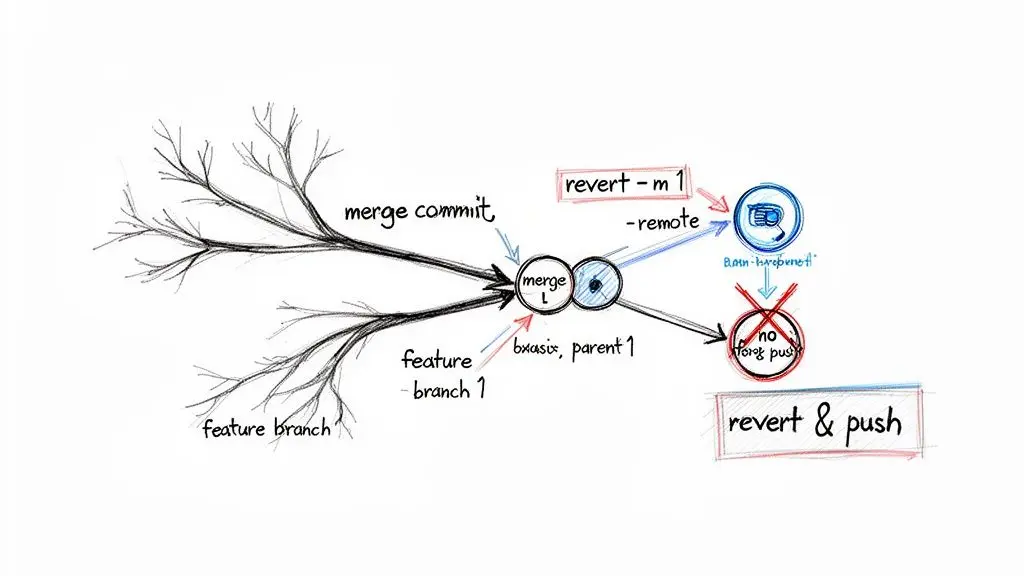
When a pull request is merged, Git typically creates a merge commit with two parents: one pointing to the state of the target branch (e.g., main) and the other to the head of the feature branch. A simple git revert <merge-commit-hash> will fail because Git does not know which parent’s lineage to follow.
Reverting a Merge Commit
To correctly revert a merge, you must specify which parent commit represents the “mainline” that you want to preserve. This is done with the -m or --mainline option.
git revert <merge-commit-hash> -m 1: This is the standard command for reverting a pull request. It tells Git to revert the changes introduced from the second parent (the feature branch) while keeping the history from the first parent (the target branch).git revert <merge-commit-hash> -m 2: This is a rare and potentially destructive operation. It would undo all changes from the target branch since the feature was created, which is almost never the intended outcome.
Therefore, if a merged PR breaks the main branch, the correct procedure is to find the merge commit hash and execute git revert <hash> -m 1. This safely removes the faulty feature’s changes, restoring the main branch to its pre-merge state without rewriting history. Managing merge reverts correctly is essential for maintaining stability, a core principle we embed in our CI/CD pipeline architecture to protect build integrity.
The Risk of Rewriting Pushed History
This brings us to the most critical rule of collaborative software engineering: do not rewrite the history of a shared branch. Consequently, using git push --force on shared branches like main or develop should be disabled through repository rules. A force push overwrites the remote history, which can silently discard commits from other developers and desynchronize every team member’s local repository, leading to significant rework and confusion.
Consider a development team deploying a new dashboard for a client. A developer pushes a buggy commit that corrupts real-time data visualizations. In a panic, they might be tempted to git reset and git push --force. This is a recipe for disaster. According to one analysis, 11% of IT support incidents in some organizations involve recovering from force pushes that have overwritten history. The risk is magnified in complex projects like enterprise AI integrations, where commit velocity is high. For more context, see the research on commit patterns and developer activity on GitClear.
The professional standard for correcting a pushed mistake is the ‘revert-and-push’ workflow. Create a new revert commit locally, then push that commit to the remote. This preserves a complete and truthful record of the project’s history.
This approach treats the codebase history as an immutable ledger, protecting team productivity and project stability. While visual Git clients can simplify these operations, a solid understanding of the underlying commands ensures you can manage any version control scenario with precision.
Best Practices for Reverting Commits in a Team Environment
Effective use of git revert is not just about technical execution; it’s about embedding a reliable process into your team’s engineering culture. For organizations building business-critical software, a consistent protocol for rolling back changes is fundamental to maintaining codebase integrity and developer trust.
This requires moving beyond ad-hoc, reactive fixes and establishing a clear, repeatable workflow for all rollbacks.
The first step is always communication. Before executing git revert on a shared branch like main or develop, inform the team. A sudden code reversal, even with good intentions, can cause confusion or conflict with in-progress work. A brief message in the team’s communication channel explaining what is being reverted and why prevents disruption.
Establish a Formal Revert Protocol
Once the team is aware, the revert process should follow your standard development workflow. A revert is a code change and should be subject to the same quality gates as any new feature.
- Create Pull Requests for Reverts: Avoid pushing revert commits directly to a protected branch. Instead, create a new branch, run
git revert, push that branch, and open a pull request. This ensures the change passes through your CI/CD pipeline and receives a proper peer review. - Write Descriptive Commit Messages: The default “Revert…” message is only a starting point. Augment it with critical context. Explain why the revert was necessary. Was it a critical bug, a security flaw, or a misaligned feature? This documentation is invaluable for future developers and auditors.
- Use
git reflogas a Local Safety Net: Whilegit revertis safe for shared history, local mistakes happen.git reflogacts as a local journal, tracking every change to your branch tips. If you accidentally rungit reset --hardand lose local work,reflogis the tool that enables you to recover those lost commits.
Upholding Robustness at Scale
Adherence to these practices fosters a culture of governance and process. This becomes even more critical for organizations integrating AI, where the velocity and complexity of code changes increase substantially. For enterprises we partner with to build governed AI systems, Git statistics reveal that reverts are a sign of quality control, not failure.
A 2024 GitClear study found that top-performing developers (99th percentile) make over 10,000 commits annually, and 35% of that work involves reverts to maintain system robustness. As one GitHub issue highlights, even commit tracking tools can have bugs, making a clean, intentional history essential for accurate project metrics.
A structured revert process is a hallmark of a mature engineering organization. It signals a commitment to transparency, quality, and collaboration—principles that are far more impactful than raw commit velocity.
By standardizing how your team handles a github revert to previous commit, you reinforce the principle that code quality is a shared responsibility. This approach is fundamental to building reliable software and is a key component of our own internal code of conduct.
Frequently Asked Questions About Reverting Commits
Navigating a project’s Git history requires precision, especially in a team setting. Here are concise answers to common questions that arise when developers need to github revert to previous commit.
What Happens If I Revert a Revert Commit?
Reverting a revert commit effectively reapplies the original changes. A git revert operation creates a new commit that is the inverse of a target commit. Reverting this “revert commit” simply creates another inverse, which restores the code to its state before the first revert.
This provides a clean, fully traceable method to reintroduce a feature or fix that was previously backed out. The project history will transparently show the original commit, the revert, and the subsequent re-application of the changes.
Can I Revert a Commit That Isn’t the Most Recent One?
Yes. git revert can target any commit in the project’s history by its unique hash. Git is designed to calculate the changes introduced in that specific commit and apply an inverse patch to your current branch HEAD.
This is a surgical operation. It does not affect any commits that were made after the one you are reverting. It only reverses the specific changes from the target commit, leaving all other work intact.
Is It Better to Revert or Create a New PR with a Fix?
The decision depends on the urgency and impact of the issue.
-
Revert Immediately: If a recently merged commit causes a critical failure—such as breaking the main build, causing a service outage, or introducing a severe security vulnerability—reverting the merge commit is almost always the fastest and safest path to restore stability.
-
Create a Fix PR: For non-critical bugs, minor regressions, or cosmetic issues, creating a new pull request with a targeted fix is often a cleaner approach. This allows the team to review the specific solution without the contextual noise of a full revert.
As a rule, communication is paramount. Discuss the situation with your team to determine the best course of action. The immediate priority should always be to return the shared branch to a stable, working state.
What Is the Difference Between Git Revert and Git Reset Hard?
Understanding this distinction is critical for any developer working in a collaborative environment.
-
git revertis a safe, non-destructive operation. It creates a new commit to undo changes, preserving the project’s history for all collaborators. It is the standard for correcting mistakes on shared branches. -
git reset --hardis a destructive operation. It discards commits from the history and moves the branch pointer, effectively rewriting the past. You should never usegit reset --hardon a shared branch that others have pulled. Doing so creates divergent histories and can cause significant, hard-to-fix problems for your teammates.
At Devisia, we build reliable digital products with a focus on maintainability and clear architectural choices. If you need a partner to turn your business vision into robust, scalable software, see how we can help. Learn more about our custom software development services.